Your staff account: first sign-in
Castles & Coasts Housing Association (CCHA) — Buyer & Platform Documentation Audience: CCHA staff | Platform: Geckr Procure
How CCHA staff get their Geckr Procure account: accepting the invitation or signing in with Microsoft, choosing a password, setting up two-step verification where your role needs it, and what to do if something goes wrong.
Who this is for
CCHA staff of every role — procurement team, senior users, department users, contract managers, evaluators and system administrators — signing in for the first time. Staff accounts are created by a CCHA system administrator, or from CCHA's Microsoft directory where Geckr has set that up; there is no self-registration for staff.
Before you start
- Your system administrator invites you. You receive an email with an acceptance link that works for 7 days. Asking for the invitation again sends a new link, and earlier links stop working.
- Have your phone or computer ready with an authenticator app (for example Microsoft Authenticator, Google Authenticator or 1Password) if you are in the procurement team, a senior user or a system administrator. These roles must use multi-factor authentication (two-step verification); it cannot be turned off.
- Department users, contract managers and evaluators do not have to set up an authenticator app, but may.
- Choose a password of at least 12 characters. A memorable phrase of three or more words works well. Do not use a commonly used password, your name or your email address.
Accept your invitation and set a password
Steps
- Open the invitation email and choose its link. The Accept your invitation page says that an administrator at CCHA has invited you to Geckr Procure.
- In E-mail address, enter the address the invitation was sent to.
- Enter a New password, then the same password in Confirm new password.
- Choose Activate account.
- You are signed in. If your role needs two-step verification you go straight to Set up multi-factor authentication (next section). Otherwise you land on your dashboard.
What you should see
Your dashboard, with your name in the header. In your system administrator's list of users, your account no longer shows "Invitation pending" and shows when you last signed in.
Common problems
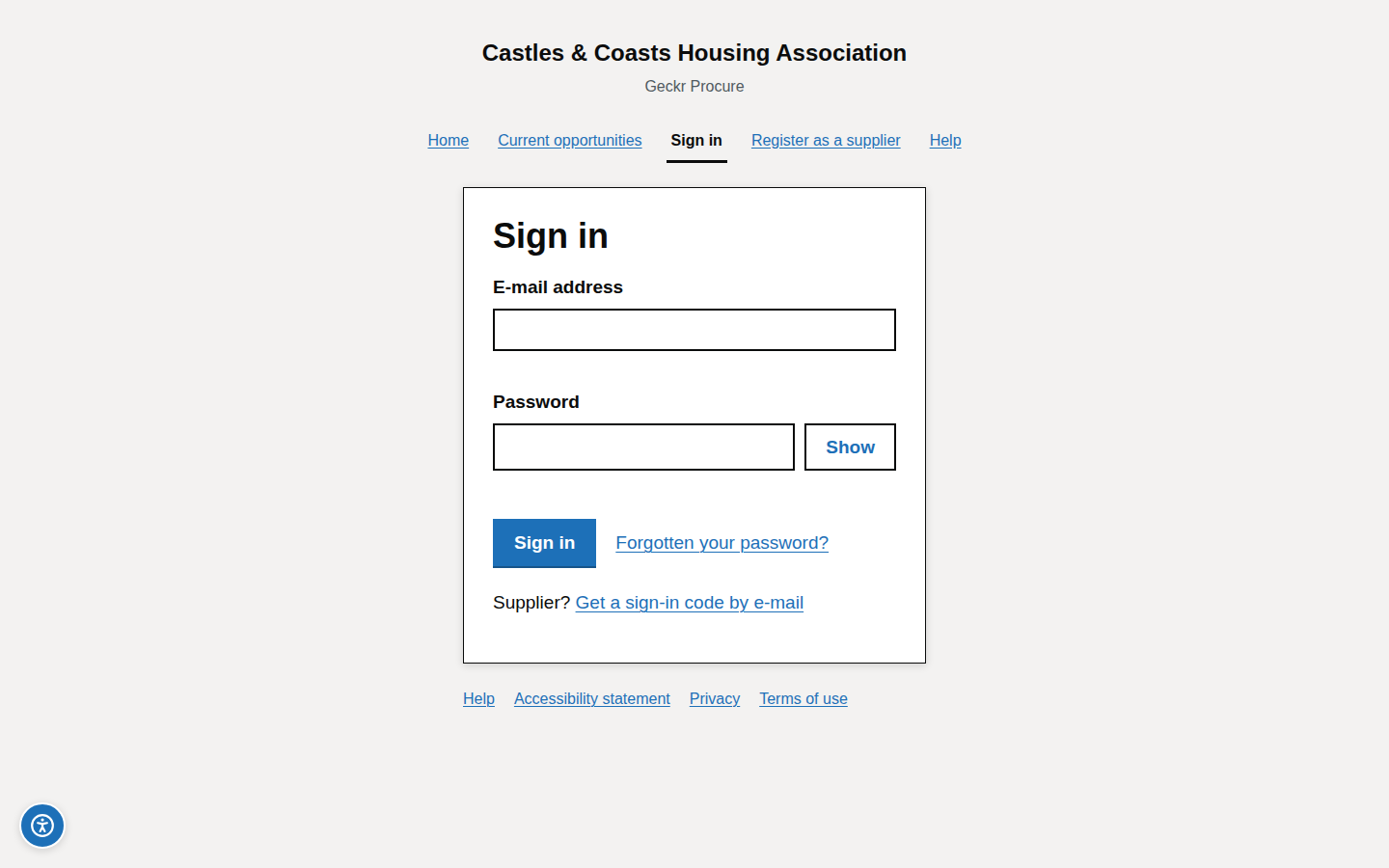
- "This link can no longer be used". The link has expired (after 7 days), has been used, or a newer invitation replaced it, or your account is already active (an invitation link stops working once you have signed in or set up two-step verification). If your account is already active, choose reset your password and follow Reset a forgotten password. Otherwise ask your administrator to re-send your invitation.
- "This invitation link is incomplete". Copy the whole link from the email into your browser, or ask for the invitation to be re-sent.
- "Enter the e-mail address your invitation was sent to". Use exactly the address in the invitation. If you think the invitation went to the wrong address, ask your administrator to correct it — see Correct a name or e-mail address.
- The password is refused. Follow the rule shown under the field: 12 characters or more, and not your name or email address. Avoid a commonly used password too.
Set up two-step verification
Two-step verification (multi-factor authentication, MFA) means that signing in needs your password and a 6-digit code from an app on your phone or computer.
Steps
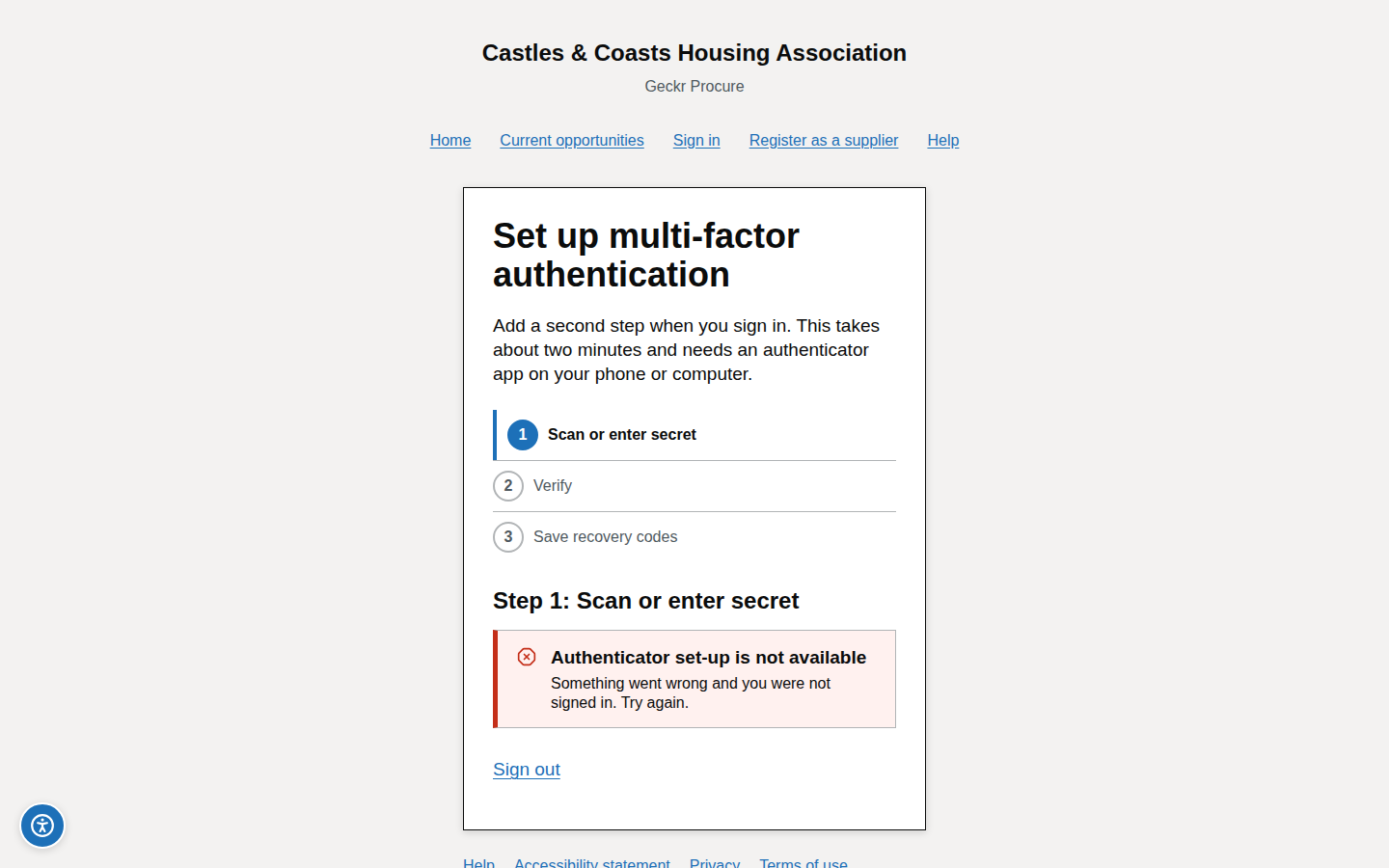
- On Set up multi-factor authentication, Step 1 (Scan or enter secret): open your authenticator app, choose to add an account, and scan the QR code. If you cannot scan it, type the key shown (use Copy key) and choose "time-based" if the app asks.
- Choose I have added the account.
- Step 2 (Verify): enter the 6-digit code your app shows in Enter the 6-digit code from your authenticator app and choose Verify code. The app shows a new code every 30 seconds.
- Step 3 (Save recovery codes): you see "Your authenticator app is connected" and a list of recovery codes. Each code works once, and they are shown only now. Choose Copy all codes and store them somewhere safe, such as a password manager.
- Tick I have saved my recovery codes and choose Finish set-up.
What you should see
Your dashboard. Profile settings shows Multi-factor authentication as Enrolled. Each time you sign in with your password you are then asked for a code — see Enter your authenticator code.
Common problems
- The code is not accepted. Codes depend on your device's clock. Set your phone to set the time automatically, wait for a fresh code and try again.
- "Authenticator set-up is not available". Try again in a moment. If it keeps happening, choose Sign out and contact your system administrator.
- You cannot leave the set-up page. Accounts that must use two-step verification cannot use the website until it is set up.
- You are a department user and want to set it up voluntarily. On Profile settings, under Your profile, choose Set up two-step verification. The link is shown while you have not set it up.
- Demonstration environments. On a demonstration website two-step verification may be switched off; your system administrator can confirm this. It is always required in production.
Sign in with Microsoft
Where CCHA has Microsoft sign-in set up, staff can sign in with their CCHA Microsoft work account (Microsoft Entra ID) instead of a password. Geckr sets this up with CCHA; there are no Microsoft settings for administrators to change in Geckr Procure.
Staff accounts can also be created from CCHA's Microsoft directory, for the people CCHA gives access to Geckr Procure there (usually by adding them to a group). An account created this way:
- has no access until a system administrator gives it a role, so you see Your account has no access assigned yet the first time you sign in (see If your account has no access yet);
- does not receive an invitation email, and has no password unless an administrator later sends you an invitation;
- is deactivated in Geckr Procure when your Microsoft account is disabled or removed, or when CCHA takes away your access to Geckr Procure in its directory.
Only people CCHA has given access in its directory can use Sign in with Microsoft; Microsoft refuses anyone else.
On the live site, CCHA staff sign in only with Microsoft: signing in with an email code or a password ends straight away with "Sign in with Microsoft", and you choose Sign in with Microsoft instead. The testing site still accepts email codes and passwords.
Steps
- Go to Sign in (
/auth/sign-in) and choose Sign in with Microsoft. - Sign in on the Microsoft page with your CCHA work account, if Microsoft asks you to.
- If your role needs two-step verification, enter the code from your authenticator app, or set one up when asked — see Set up two-step verification. Signing in with Microsoft does not replace it.
What you should see
Your dashboard, or Your account has no access assigned yet if no role has been given to you yet.
Common problems
- There is no Sign in with Microsoft button. Microsoft sign-in is not set up for this website. Sign in with your email address and password.
- "Your Microsoft account is not set up for Geckr Procure yet". Microsoft signed you in, but no Geckr Procure account is linked to it yet. Ask your system administrator to check your account; a new account from the directory appears only after the next directory import.
- "Microsoft sign-in did not complete". Try again, or sign in with your email address and password if you have one (on the testing site only).
- "Sign in with Microsoft" after entering a password or email code. On the live site CCHA staff must sign in with Microsoft. Choose Sign in with Microsoft.
If your account has no access yet
Steps
- If you see Your account has no access assigned yet ("You can sign in, but you are not a member of any team"), your account exists but no role has been given to it.
- Ask your system administrator or the procurement team to assign your access.
- Choose Sign out, and sign in again once they confirm.
What you should see
After the administrator adds you to a team and you sign in again, your dashboard.
Common problems
- You can see some areas but not others. That is decided by your roles. See Check your roles and department.
What your role gives you
When your administrator invites you they choose a role preset. You can see your roles on Profile settings.
| Preset | What it is for | Two-step verification |
|---|---|---|
| Procurement officer | Runs exercises, notices, evaluation and letters | Required |
| Senior user | Approves exercises and awards; sees every dashboard | Required |
| Department user | Sees exercises, contracts and reports for their department | Optional |
| Contract manager | A department user who manages contracts; access is given on each contract | Optional |
| System administrator | Configures the organisation, users, templates and integrations | Required |
Evaluator and moderator access is given on each exercise, not by a preset.
Getting help
- Account and organisation questions for invitation and sign-in problems.
- Your CCHA system administrator for roles, departments, invitations and authenticator resets.
- Related: Signing in, signing out and staying secure · Managing your own account · the role guides for Procurement team, Department user, Evaluator, Senior user, Contract manager and Administrator.
Glossary links
Multi-factor authentication · Recovery code · Task · Exercise