Department user guide
Castles & Coasts Housing Association (CCHA) — Buyer & Platform Documentation Audience: CCHA staff | Platform: Geckr Procure
Who this is for
CCHA staff outside the procurement team who raise requirements, complete tasks, record KPI readings and log internal quotations for their own department: repairs managers, compliance managers, neighbourhood managers, finance. Tom Bell (Repairs Manager) is the department-user persona in the demo tenant.
Before you start (sign-in, MFA/magic link, browser)
- Sign in with your CCHA email address and password (SSO once connected). MFA is optional for department users and required if you also hold a senior or procurement role.
- Use a current browser at 100–125 % zoom; the product works on a phone or tablet and with the keyboard alone.
- You see only your own department's exercises and contracts, plus anything you are personally assigned to.
Your dashboard and task inbox
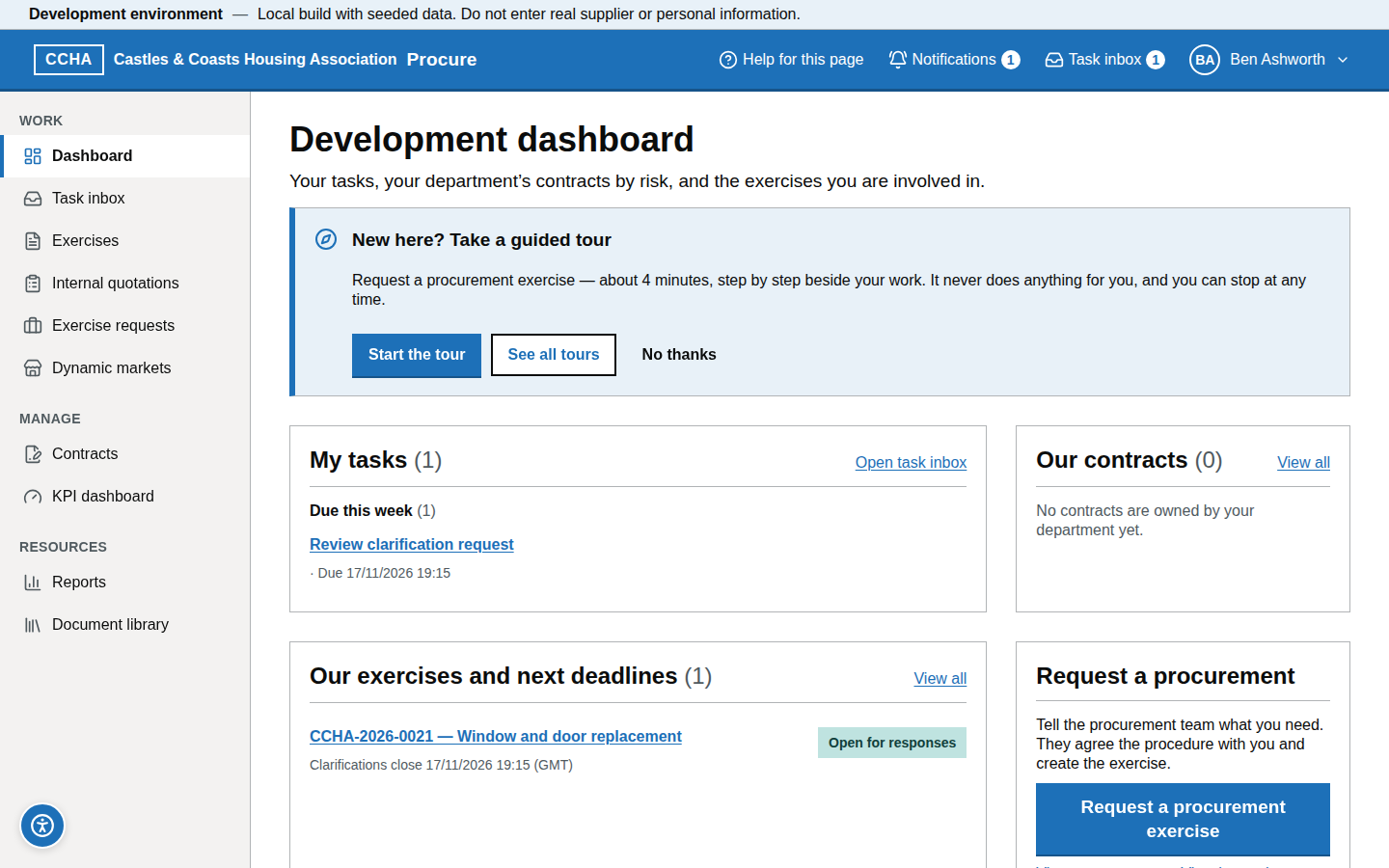
Your dashboard (/b/dashboard/department) shows My tasks grouped by due date, My evaluations (if you are evaluating or moderating), My contracts (those you own), Our contracts (your department's contracts, red RAG first), Our exercises and next deadlines (your department's exercises still in progress) and Request a procurement. The task inbox (/b/tasks) lists what needs you: actions due, KPI readings due, evaluations if you are an evaluator. Open a task to go to the work; email digests are optional.
Request an exercise
Steps
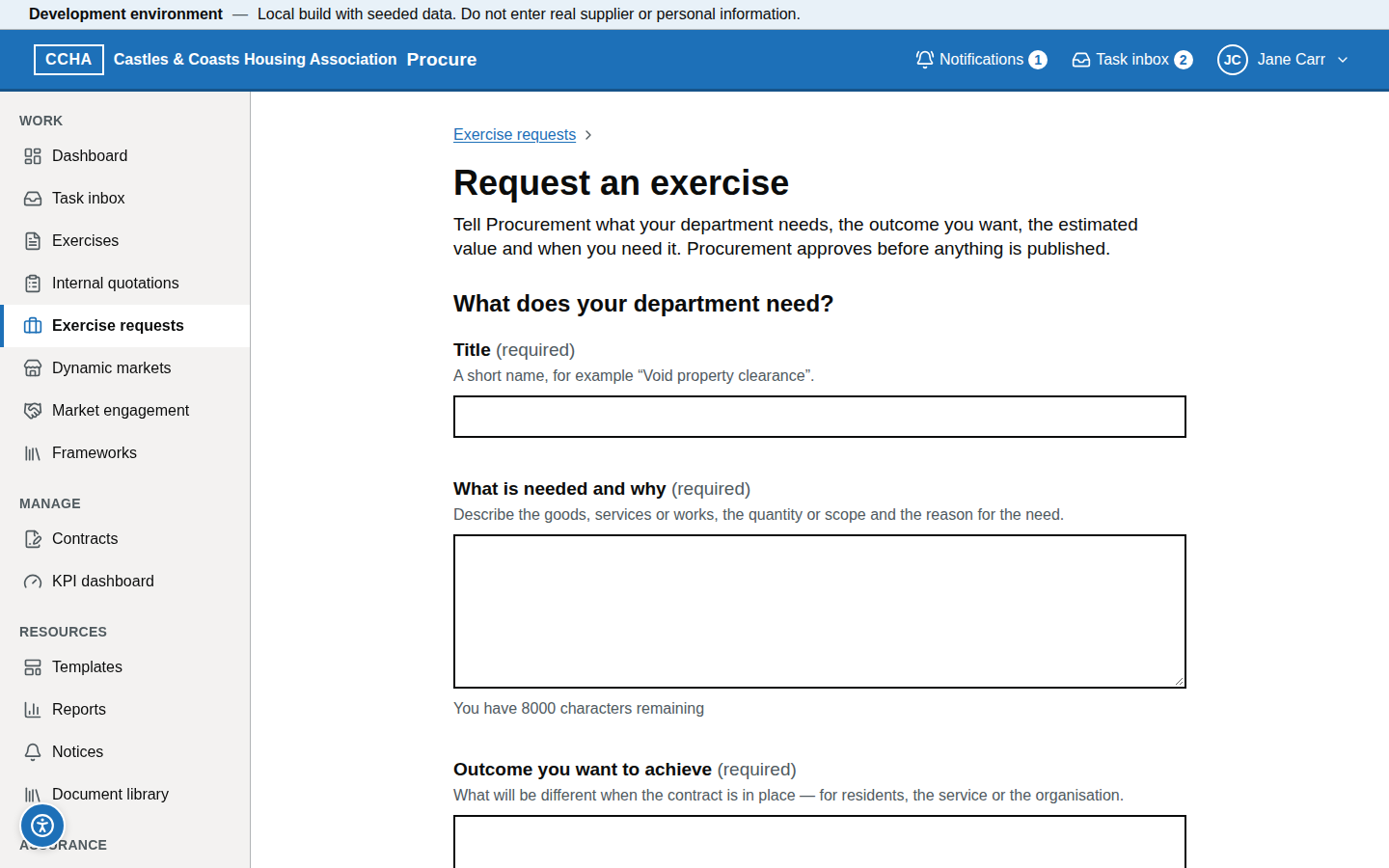
- Exercise requests → Request an exercise (or Request a procurement exercise on your dashboard).
- Describe the requirement: title, what is needed and why, the outcome you want, estimated value, when it is needed, the budget holder, and any supporting documents.
- Choose Send request to Procurement. The procurement team receives a task; you can follow the request under Exercise requests or from View your requests on your dashboard.
What you should see
The request listed with status "Awaiting triage" ("Awaiting manager approval" first if its value reaches your department's approval threshold).
Common problems
- I need it advertised myself. Only the procurement team publishes; the request is how you start.
- It is under the quotation limit. Use Log an internal quotation instead.
- It went back to "Awaiting manager approval" after I resubmitted. A resubmitted request whose value reaches your department's approval threshold needs your manager's approval again, unless an earlier approval already covered that value.
See your department's exercises and contracts
Steps
- Exercises shows your department's exercises with their status; open one for the timeline and documents.
- Contracts shows your department's contracts with RAG, end date and actions overdue; open one for actions, KPIs, changes and documents.
- Use the filters (exercises: status and procedure; contracts: status, expiry RAG, expiry window and owner) and the search box.
What you should see
Lists limited to your department; a Read-only banner with a padlock on pages you can view but not change.
Common problems
- A contract is missing. It belongs to another department or you are not on its manager team; ask the contract owner.
- I cannot see submissions. Submissions are sealed until opening and visible only to evaluators.
Complete a task
Steps
- Open Task inbox and select the task (for example "Agree TUPE list with successor (CON-2024-001)").
- Do the work on the page the task opens — for an action on the contract's Actions tab, choose Complete, add the note and choose Mark as done.
- The task disappears from your inbox; dismissing a task does not complete the underlying work.
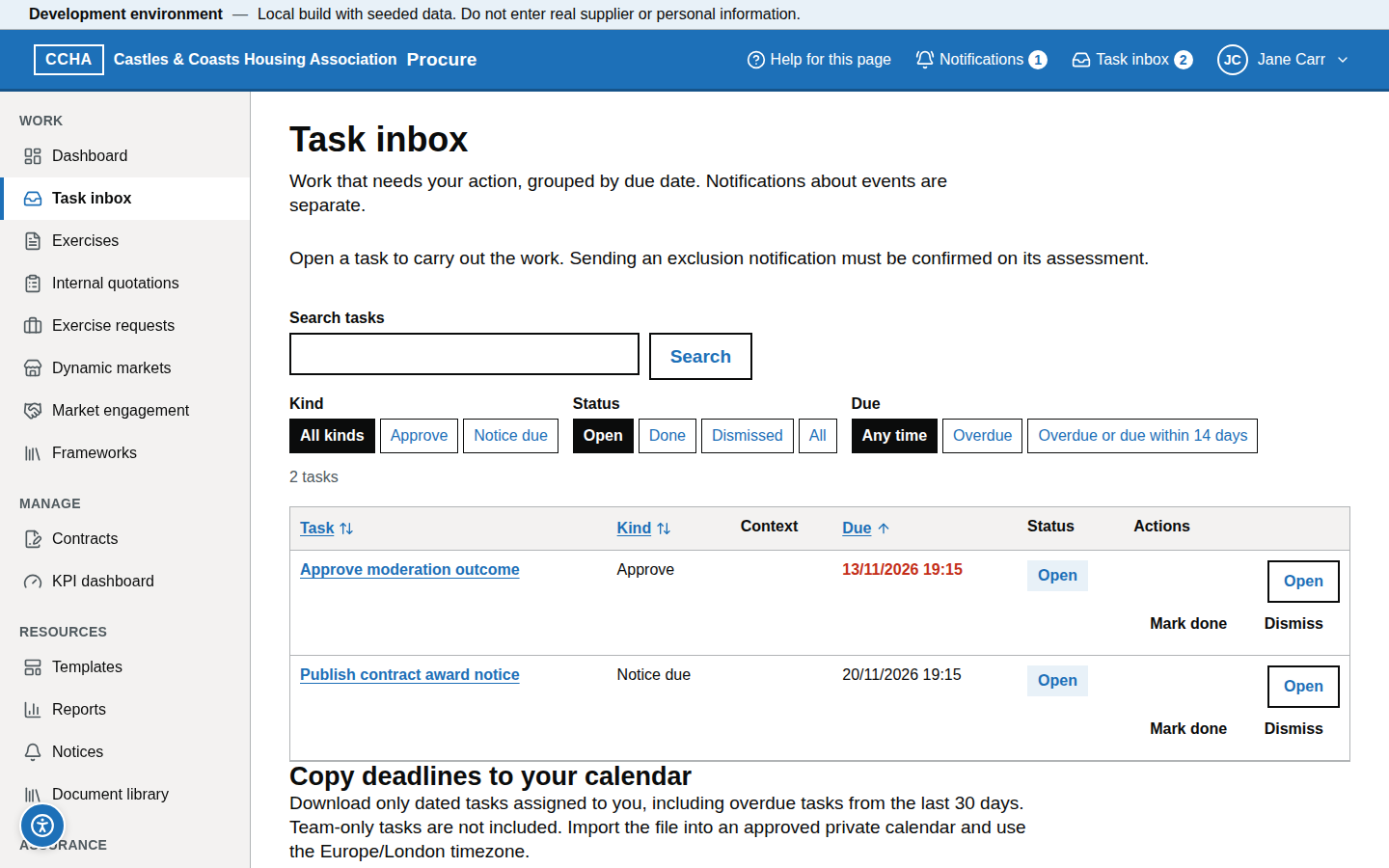
- A task that you close yourself: on Task inbox (
/b/tasks) choose Mark done on its row, or Dismiss and then Confirm dismiss. Only the person or team the task is assigned to can close it; anyone else sees "Only the assigned person or team can change this task."
What you should see
A confirmation message, and the task gone from your inbox.
Common problems
- The task keeps coming back. It is a scheduled reminder (KPI due, action due); it stops when the work is recorded.
- I am not the right person. Ask the contract owner to reassign the action.
- The task shows a "Closed automatically" note. The service closed it for you, for example "Closed automatically: the exercise was abandoned" or "Closed automatically: the notice has been published". There is nothing left to do.
- "The task could not be updated". Refresh the inbox to check the task's current status before trying again.
Record a KPI reading
Steps
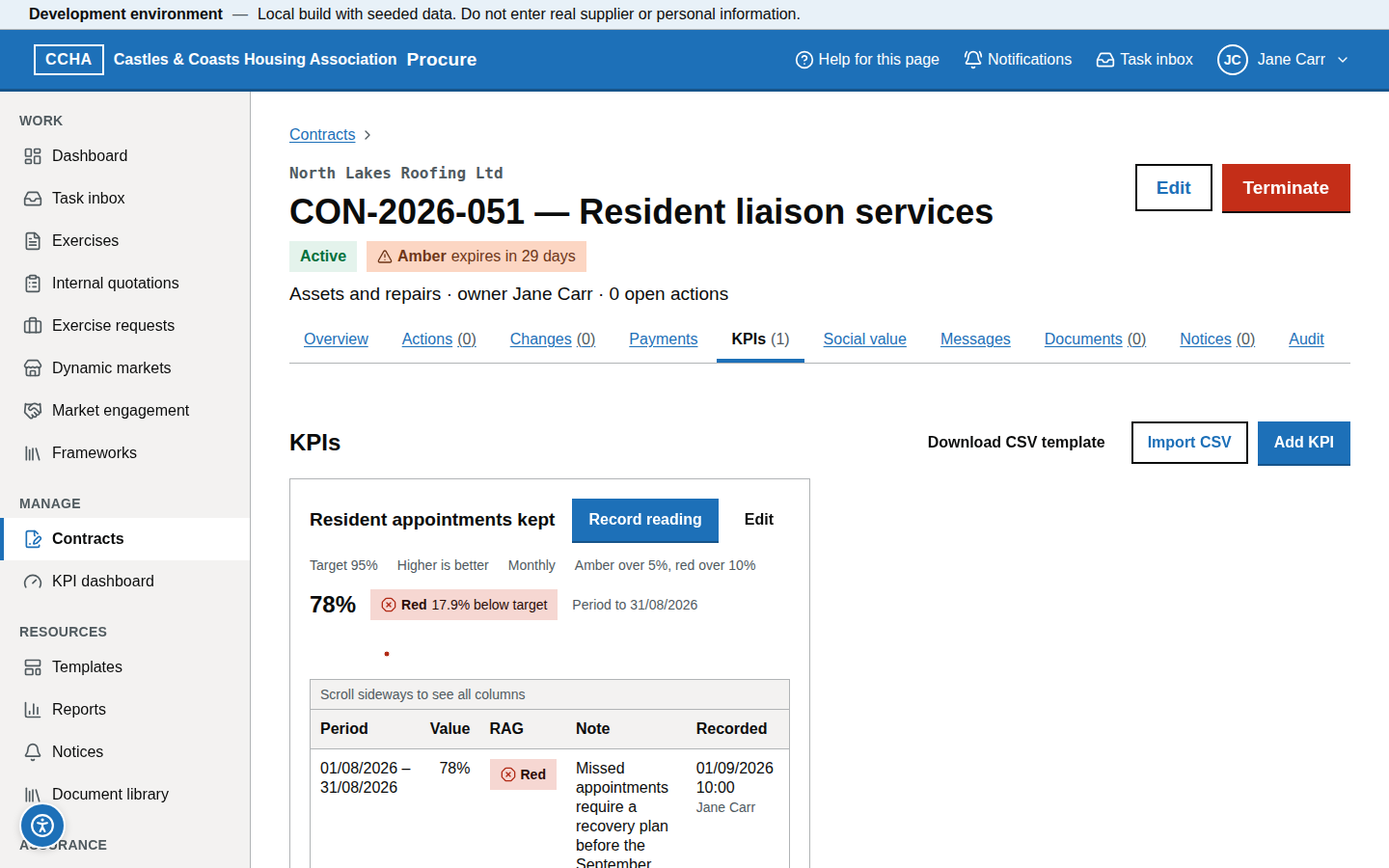
- Open the contract → KPIs and choose Record reading on the KPI.
- Enter the Period start and Period end (month or quarter), the value and an optional note.
- Choose Record reading. The RAG is calculated from the tolerances and the sparkline updates. A red reading raises a "KPI breached" task for the contract owner and the contract's managers.
What you should see
The new reading with its RAG colour and text.
Common problems
- Wrong period. Check the period dates before recording; each period can be recorded only once ("A reading for this period already exists").
- I need to correct a value. Record the correction as a new reading with a note; the original stays in the audit.
Log an internal quotation
Steps
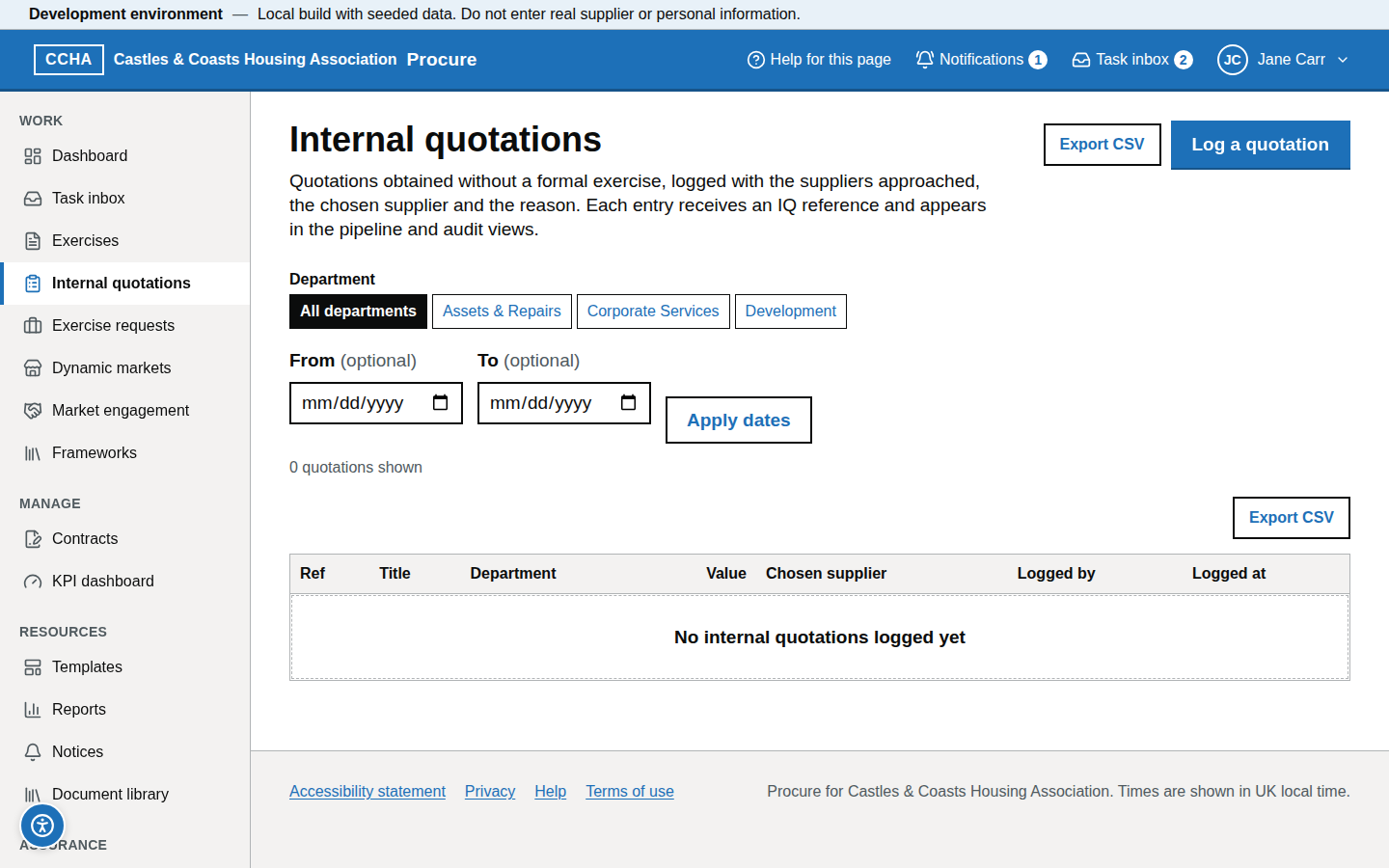
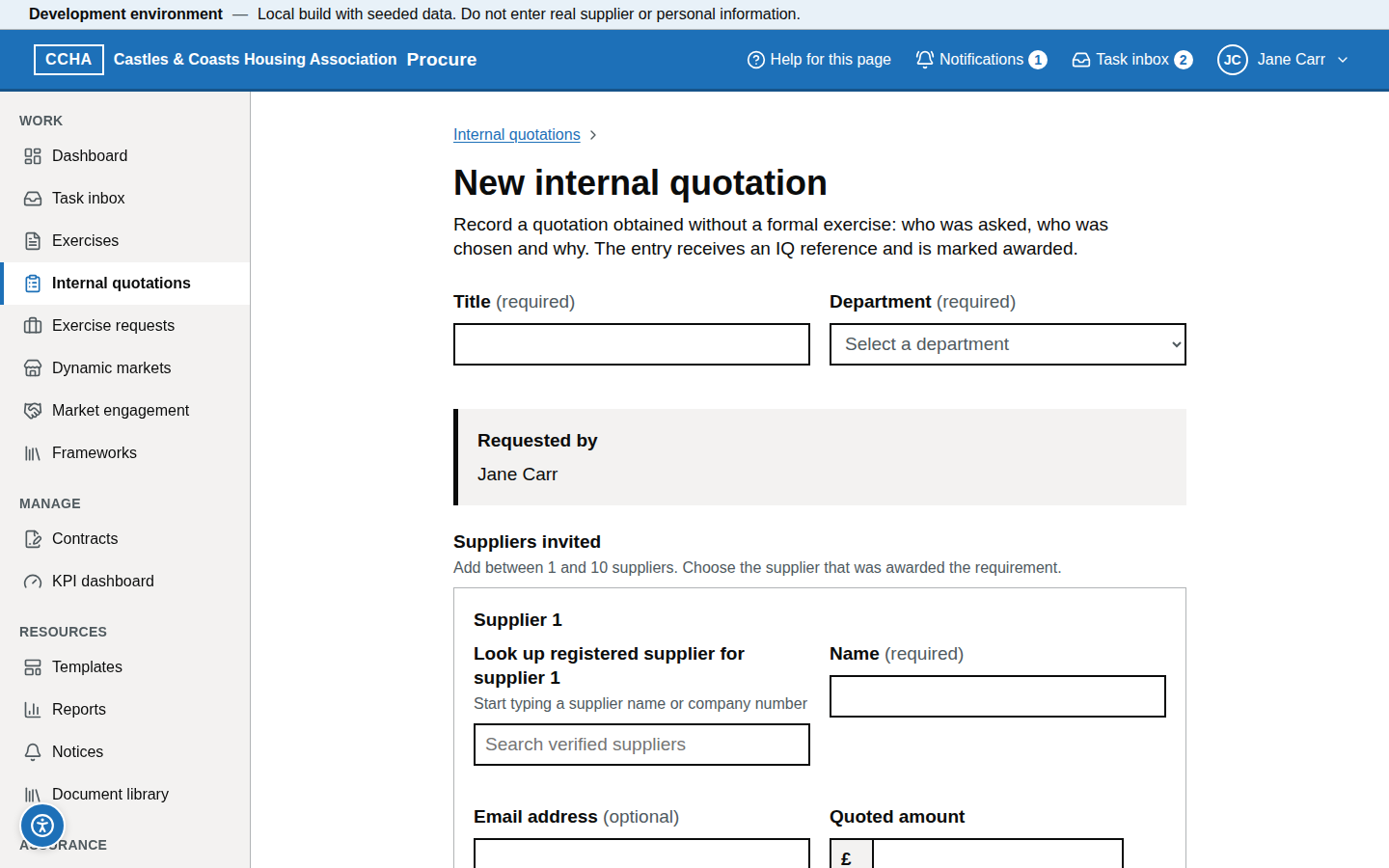
- Internal quotations → Log a quotation.
- Enter the title, department, value, the suppliers asked and their quotes, the chosen supplier and the reason.
- Say how the national procurement policy statement was taken into account, and record the barriers for small and medium-sized enterprises: what might make it harder for a smaller supplier to compete — insurance levels, experience asked for, short timescales — and what you did to remove or reduce it (Procurement Act 2023, section 86). If you found no barriers, say how you checked.
- Attach the written quotes and choose Log quotation; the log allocates
IQ-YYYY-NNNN("Logged as IQ-YYYY-NNNN").
What you should see
The quotation in the log with its reference.
Common problems
- Fewer than three quotes. Allowed (at least one supplier is needed) and not flagged by the log; record why in Reason.
- The supplier is not registered. Type the name; registration is not required for quotations.
- "Record the barriers for small and medium-sized enterprises first". The quotation was saved but cannot be marked as awarded without that record. Enter the two answers shown and choose Record and finish logging.
Run a department report
Steps
- Reports → Report library → choose a definition scoped to your department (contracts, KPIs, spend).
- Choose Run, set the parameters and format, and choose Run report; download the CSV, XLSX or PDF.
- Schedule it monthly if you need it regularly.
What you should see
A run row with status and a download link.
Common problems
- Empty report. Widen the date range or check the department filter.
- Need an organisation-wide report. Ask a senior user or the procurement team.
Getting help (help panel, knowledge base, helpdesk hours)
The ? button (Help for this page) in the header opens the help panel with the article for that screen and, where one is planned, a Watch the video guide for this page link (the videos are not yet recorded; the link says so). From the panel you can open the full guidance or search the help by title and heading. Take a guided tour, in the same panel (or Guided tours in your account menu), walks you through a task step by step and follows you from page to page (Take a guided tour). Support contact details and hours are on the Help page (/help#contact in Geckr Procure).
Glossary links
Glossary: exercise · contract manager · RAG · KPI · action · internal quotation · task.